Topic Source Workflow
This guide describes the end-to-end process for connecting to data sources, extracting files, generating knowledge topics and notes using OpenAI, storing them in a vector database, and enabling chatbot-powered Q&A.
Step 1: Select and Connect to a Data Source
Supported data sources:
- GitHub – Connect to a repository for source files and documentation.
- Bitbucket – Similar to GitHub, for Bitbucket repositories.
- Website – Fetch content from a public or private website.
- File Share – Upload ZIP files or connect to a network share.
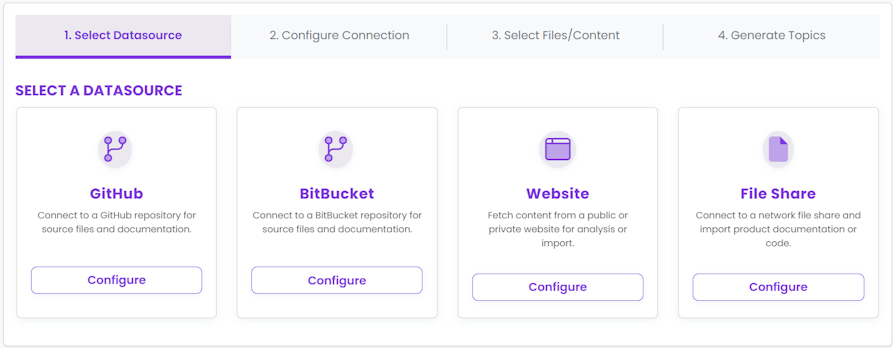
- Choose your data source type.
- Click
Configure to proceed to connection setup.
Step 2: Configure Connection
Enter the required connection details for your selected provider:
- GitHub/Bitbucket: Provider URL, API Token, Owner, Repository, Branch.
- Website: Website URL, Username/Password (if needed), Extra Config.
- File Share: Upload ZIP file or provide UNC path and credentials.
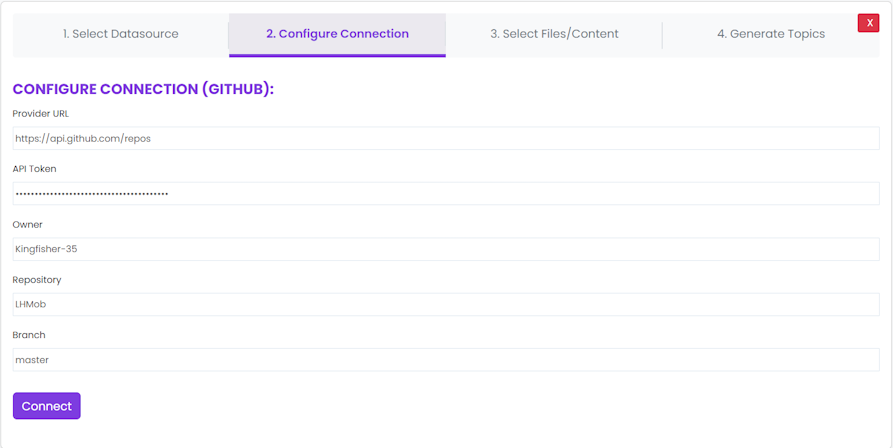
- Fill in the required fields.
- Click
Connect to save and test the connection.
Tip: Credentials and tokens are securely stored and never exposed to other users.
Step 3: Select Files/Content
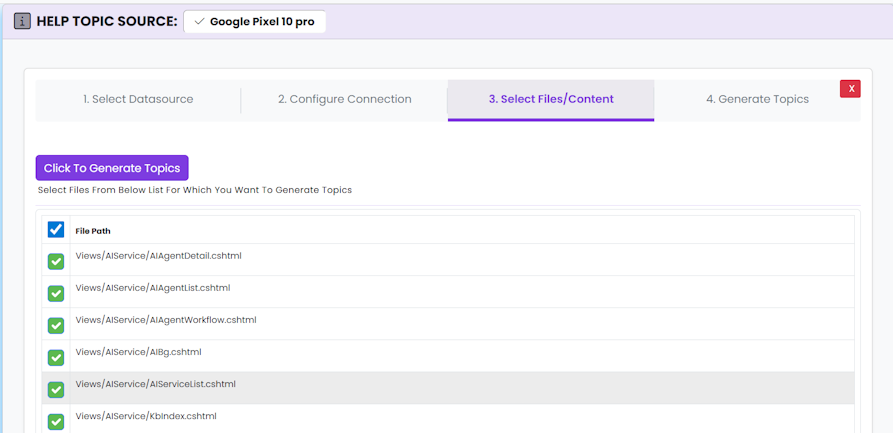
After connecting, the system fetches a list of available files. You can:
- Review the file list.
- Select individual files or use
Select All for bulk selection.
- Check the files you want to process for topic generation.
- Click
Click To Generate Topics to proceed.
Step 4: Generate Topics with OpenAI
The system sends the content of selected files to OpenAI with a prompt to extract raw notes and initial topics.
- Click
Generate Topics to start the process.
- Wait for the system to process the files and receive AI-generated topics and raw notes.
Tip: You can monitor progress and view results in the status area.
Step 5: Generate FAQs and Production Notes
For each topic, you can further generate FAQs and Production Notes using OpenAI:
- Send the raw notes to OpenAI with a prompt to generate FAQs and production notes.
- Review and edit the generated content as needed.
Step 6: Store Topics in Vector Database
All generated topics, raw notes, FAQs, and production notes are stored in the vector database for semantic search and chatbot Q&A.
Tip: The vector database enables fast, context-aware search and retrieval for chatbot answers.
Step 7: Chatbot Q&A
Users can interact with the chatbot to ask questions about any topic. The chatbot:
- Uses vector search to find relevant topics.
- Answers using stored notes, FAQs, and production notes.
- Can generate new answers using OpenAI if needed.
Best Practices & Tips
- Preview files before processing to avoid irrelevant topics.
- Review and edit AI-generated notes and FAQs for accuracy.
- Use bulk selection for efficiency, but ensure only relevant files are chosen.
- Monitor progress and check for errors in the status/result area.
Troubleshooting
- Connection Issues: Verify credentials, tokens, and URLs.
- File Not Found: Ensure files exist and are accessible.
- AI Generation Errors: Retry with different prompts or split large files.
- Chatbot Not Answering: Ensure topics are generated and stored correctly.
Security & Permissions
- Only authorized users can connect to data sources and generate topics.
- All actions are logged for audit and troubleshooting.
Support
For further assistance, contact your system administrator or refer to the in-app help documentation.